


 0
0

One of the biggest annoyances since the rollout of modern cell phone services is the presence of prank calls, unsolicited messages and spam that comes our way on a daily basis. Prank calls and unsolicited messages vary — from being bombarded by telemarketers to a forlorn ‘frandshipper’ sending maudlin texts to the worst case scenario of someone persistently harassing you. Thanks to Google, Apple & Microsoft rolling out features in their recent mobile operating system updates, blocking calls and messages has become a breeze now. The instructions for each OS are detailed below:
1) Android
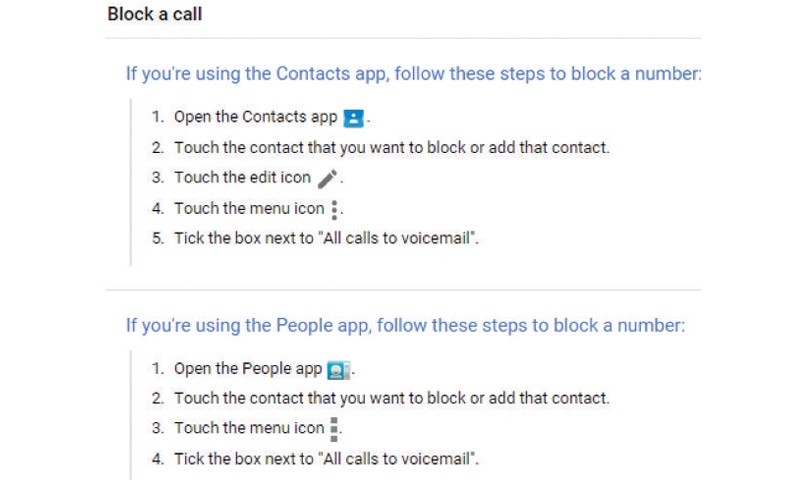
On Android 4.4 and above, any unsolicited calls can be blocked by accessing your call history log. Open your call history, select the number individually to block, and hit the menu button. Look for the “Add to Reject List” option, and add the number you want to block.
 |
Managing the call reject list is accessible under Settings >> Call >> Call Reject >> Auto Reject List. This will give you the ability to add more numbers and contacts to be blocked. The screenshot below details instructions to block calls on a Google Nexus device running the OS v5.0 Lollipop:
Discover how to block calls and text messages on Android, iPhone and Windows Phone 8/8.1
For unwanted text messages, it is recommended to switch to Google Hangouts as your default messaging app in order to access the blocking feature available within it. Open Settings on your Android phone, Click “More” under the Wireless & Networks option, then select “Default SMS app” as Google Hangouts. Go back to your home screen, open Hangouts app and it will automatically start importing all your SMS messages by default. After the import is successful, identify the number that is spam and open it. Click the three-dot menu button as highlighted by the arrow in the top right hand corner of the screen >>”People & Options”>>Select “Block number” and you are done!
 |
2) iOS
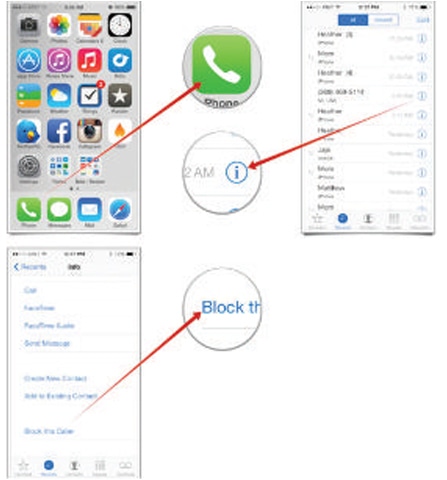
On iOS 7 and above, this feature is available as a default and is a breeze to configure. Open the Phone App>>Tap Recent Calls>>Find the number you want to block>>Click on the Info button next to the number denoted by a circled “I”>>Scroll beneath to reveal the “Block this caller” option click on it and a dialog will pop up to confirm to “Block contact”. This will ensure that you do not receive any unsolicited calls or SMS spam from any of these numbers.
3) Windows Phone 8/8.1
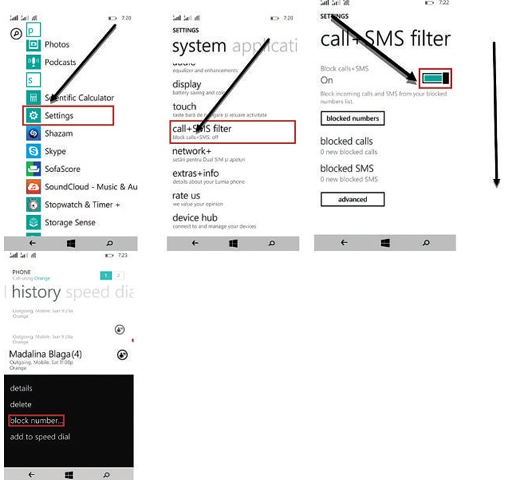 |
By default, the ability to block unsolicited calls and text messages are available on most Lumia-based Windows Phone 8/8.1 smartphones. Go to your App list>> Tap Settings>>Scroll down to access “Call+Sms filter” option>> Click on the “Block Calls+SMS” to turn it on. Access your call history>>Highlight and hold the number to reveal a pop-up menu>>Select “Block number” and you will be asked to add the number to your blocked list. Tap “OK” as shown below:
Published in Dawn, Sunday Magazine, September 6th, 2015
On a mobile phone? Get the Dawn Mobile App: Apple Store | Google Play